How to Download Instagram Story to Gallery (iPhone & Android)
You can download instagram story to gallery in under a minute, with no app install and no login required, using the same anonymous approach as InstaPVStory. Here’s the exact process for both iPhone and Android.
On This Page
What’s the fastest way to download instagram story to gallery: the short answer
The fastest way to download instagram story to gallery is a browser-based tool that reads the public story’s link and saves the original media file directly — no app install, no account login, and it works the same on both iPhone and Android since it just runs in the browser. Only save content you own or have permission to reuse, as explained by the U.S. Copyright Office.
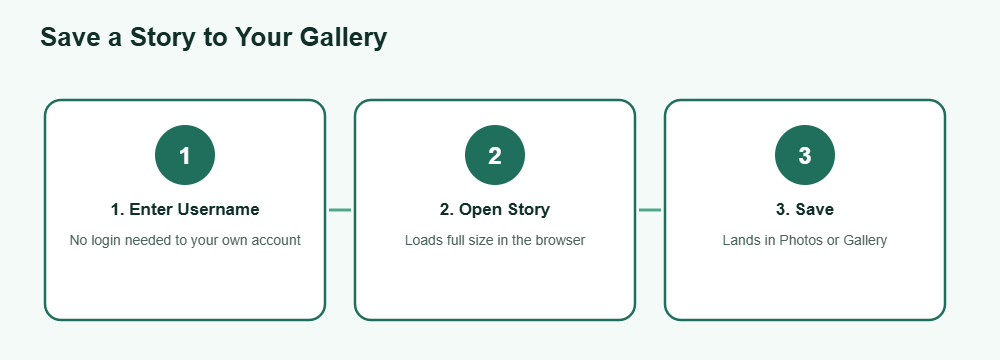
Step-by-step guide
Find the public username
Open the tool and enter the username whose public story you want to save — no login to your own account needed.
Open the story
Tap the story you want to save so it loads at full size in the browser tab.
Save to your gallery
Tap the download button. On iPhone, the photo or video saves straight to Photos; on Android, it lands in your Gallery or Downloads folder.
That’s the full process to download instagram story to gallery on either platform — the steps are nearly identical, since the tool runs entirely in the mobile browser rather than a separate app for each operating system. The whole thing usually takes under a minute from opening the browser tab to seeing the saved file in your photo library, and there’s nothing to uninstall afterward since the tool never leaves anything behind on your phone. Compare all story download methods in one place.
What works vs. what doesn’t
Not every story can be saved this way — here’s the honest breakdown of what actually works when you try to download instagram story to gallery. To keep highlights permanently, try a highlights downloader.
Works
- Public accounts’ active stories
- Photo and video stories alike
- Both iPhone Photos and Android Gallery
Doesn’t work
- Stories on private accounts you don’t follow
- Stories that have already expired after 24 hours
- Close Friends-only stories from accounts you’re not on the list for
Since a story only stays live for 24 hours, timing matters more here than with a regular post — if you want to keep something, it’s worth saving it before that window closes. Highlights are the one exception: a story the poster has pinned to their profile stays accessible indefinitely, so there’s no rush to save those before they disappear. Keeping that distinction in mind saves you from scrambling to grab something that was never actually going away in the first place. For a full ranking, see how the story viewers compared side by side.
Frequently Asked Questions
Do I need an app to download instagram story to gallery?
No. A browser-based tool works entirely in your mobile browser, so there’s nothing to install on either iPhone or Android.
Does the process differ between iPhone and Android?
Only slightly — the save destination differs (Photos on iPhone, Gallery or Downloads on Android), but the steps to get there are otherwise the same.
Will the poster know I saved their story?
No, saving a public story this way doesn’t trigger any notification, the same way viewing it anonymously doesn’t.
Can I save a story after it’s expired?
No. Once a story passes its 24-hour window, it’s no longer publicly accessible, so it can’t be saved anymore unless the poster has added it to Highlights.
Can I download a story from a private account?
No. If you can’t view the story without logging in and following the account, it can’t be saved through a public browser tool either.
Want to save a story to your gallery right now?